Guides ·
Christmas hours: how to update Google, your website and Facebook
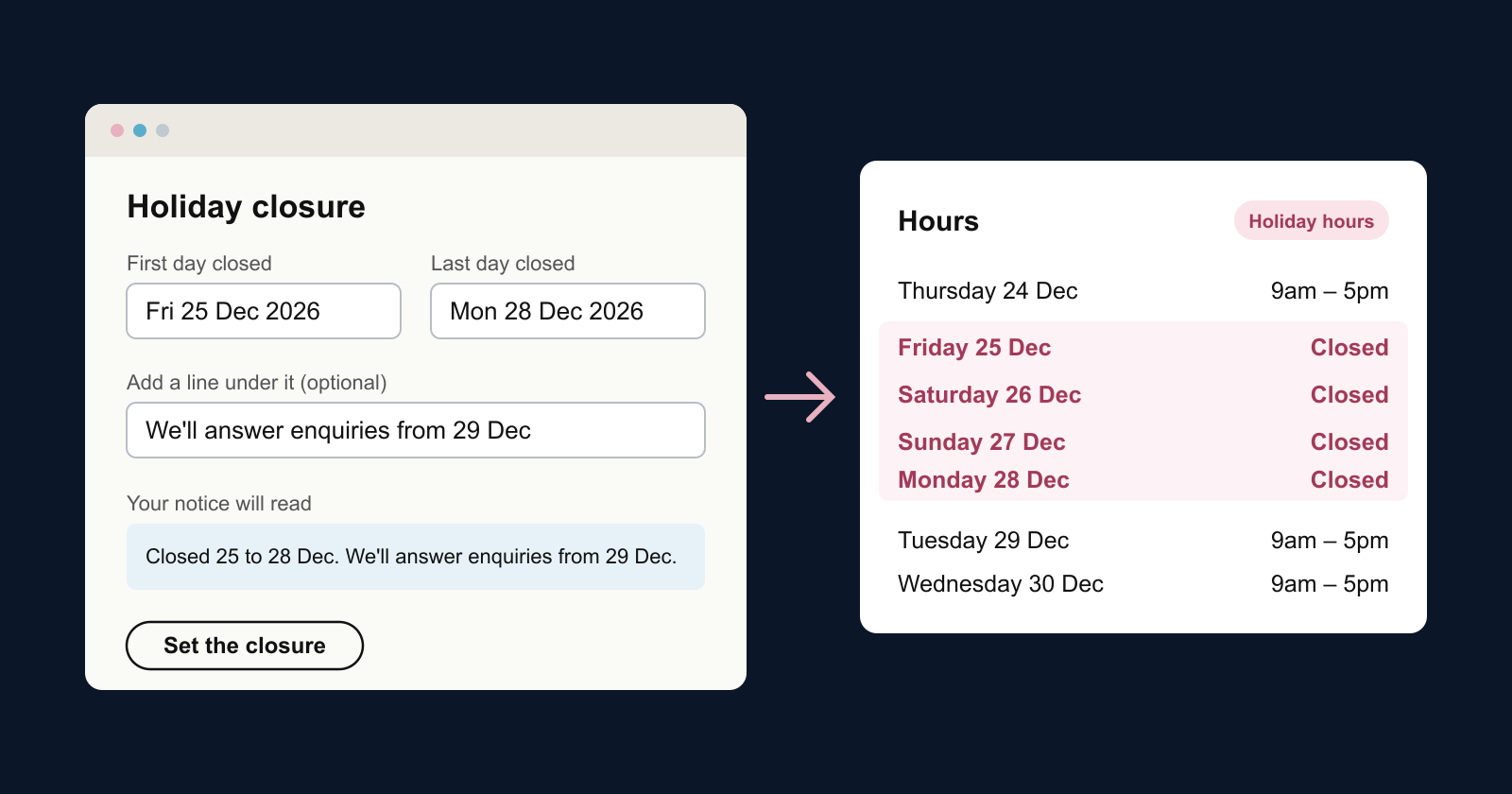
Every January we hear the same story. A customer drove across town, the shop was closed, and Google said it was open.
It's rarely the business owner's fault. They put a sign on the door and a post on Facebook. But most customers never see either. They search your name, glance at the hours Google shows, and get in the car.
Here are the five places to update your Christmas and New Year hours, in the order customers check them. Set aside ten minutes this week and it's done.
1. Your Google Business Profile
This is the one that matters most, and the one most people forget. It's what shows up in Google Maps and in the box beside your search results.
Google lets you set special hours for particular days without touching your normal hours:
Search your business name on Google while signed in to the account that manages it, or open the Google Business Profile app.
Choose Edit profile, then Hours, then Special hours (or Holiday hours).
Add each date that's different: Christmas Eve, Christmas Day, Boxing Day, New Year's Eve, New Year's Day, and any days you close in between.
Google often suggests upcoming public holidays for you to confirm. Do it, even for days you're open as normal. A confirmed "open" is better than a question mark.
2. Your website
Put the holiday hours where people already look: the footer, the contact page and the home page. One short line is enough: "Closed 25 December to 4 January. Back Monday 5 January."
If your site runs on Ellipse Edit, you can change this yourself in a minute. If it doesn't, email whoever looks after it now. In mid-December everyone is asking at once.
3. Facebook and Instagram
On your Facebook Page, update the hours in your Page details. Then put up a post with the dates, and pin it to the top of the Page so it's the first thing people see.
Instagram has no hours setting, so a post or a story with the dates does the job. Mention it in your bio for the closed weeks too.
4. Your phone message
Change your voicemail or on-hold message for the break. Say when you're closed, when you're back, and where to go if it's urgent. It takes two minutes and saves a lot of frustrated callers.
5. The sign on the door
Last, but still worth doing. Put it up a week or two early, so regulars see it on their last visit before the break.
One more tip: change them back
Special hours on Google switch back by themselves after the dates pass, which is one more reason to use them rather than editing your normal hours. Everywhere else, put a reminder in your calendar for your first day back: website, Facebook pin, phone message, door.
Doing your own website check before the holidays? We're offering a free 15-minute website check-up for regional businesses this month. Send us your web address and we'll tell you, plainly, what would help most.